Set Up Proxmox Backup Server with NFS Storage on a NAS
Proxmox Backup Server (PBS) gives your Proxmox VE fleet real deduplicated, incremental backups. The NFS storage setup has a permissions gotcha that trips up almost everyone the first time.
The setup
PBS runs happily as its own VM. Point it at NFS-backed storage from a NAS for the actual backup datastore:
mkdir -p /mnt/pbs-backups
mount -t nfs <nas-ip>:/volume1/pbs-backups /mnt/pbs-backups
echo "<nas-ip>:/volume1/pbs-backups /mnt/pbs-backups nfs defaults,_netdev,vers=4.1 0 0" >> /etc/fstabmkdir -p /mnt/pbs-backups/datastoreThe NFS permission gotcha (the one that gets everyone)
ssh <nas>
sudo chmod -R 777 /volume1/pbs-backups
Connecting PBS to your hypervisor
This needs a token/ACL setup on both sides:
- On PBS: create an API token (
Configuration → Access Control → API Tokens) and grant it the datastore admin role:proxmox-backup-manager acl update /datastore/<name> DatastoreAdmin --auth-id 'root@pam!<token-name>' - On your hypervisor: add PBS as a storage target, using the
user@realm!tokennameformat for the username field and the token secret (not the token name) as the password.
!tokenname suffix. If it then fails with "cannot find datastore", run
proxmox-backup-manager acl list on PBS. A token can authenticate successfully while holding zero
permissions on anything, and that produces exactly this error.
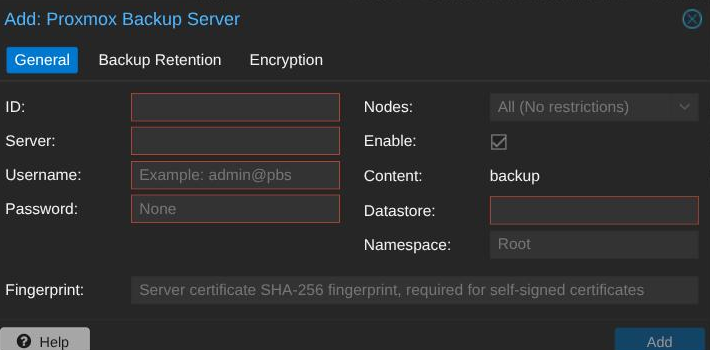
user@realm!tokenname format described above.Backup job configuration
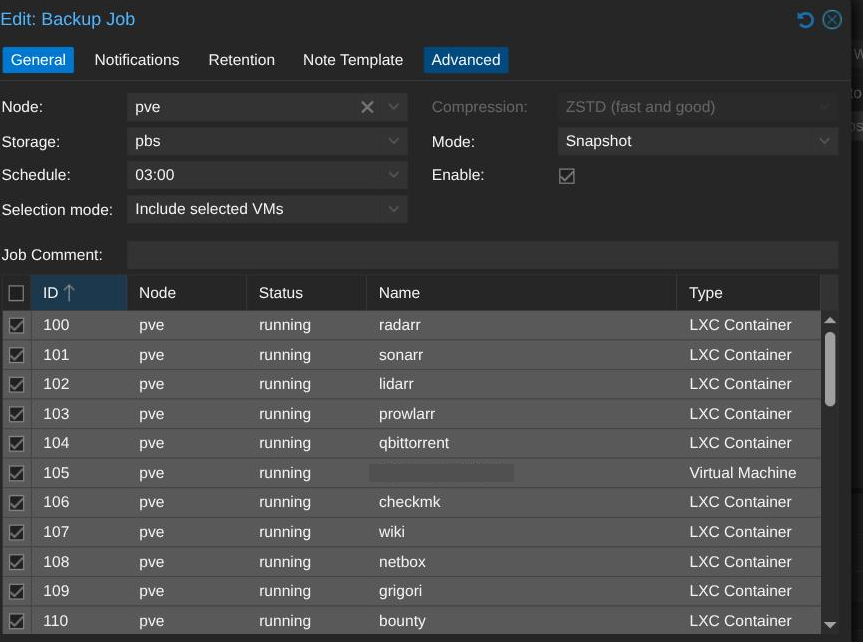
A reasonable starting retention policy is keep-last 3, keep-daily 7, keep-weekly 4, keep-monthly 2, keep-yearly 1. Many backup jobs use an explicit VM or container ID list, not "all". Every new guest has to be added to the job by hand. That is easy to forget while spinning up new infrastructure. Audit the list periodically to catch anything that slipped through.
Sizing your NAS storage realistically
df on a shared NFS mount to estimate datastore size.
df reports usage for the entire underlying volume, which may be shared by many unrelated exports
on the same NAS. Run du -sh on the exported path instead. The difference can be enormous. In one
real case df showed 23TB and the datastore was 185GB.
Migrating the datastore to new storage later
To move the backing storage to a different NAS, the safe sequence is short. Mount the new share alongside
the old one. rsync the datastore across. Verify file counts and sizes match on both sides. Then
cut over. Stop the PBS services before the cutover. The daemon holds a lock file open on the datastore, so
unmounting fails with "device busy" while it runs. Update the mount config to point at the new location,
remount at the same path, and restart the services. If the datastore name and mount path do not
change, nothing on the hypervisor side needs updating. It only talks to PBS's API, never the NAS
directly.
set -e block as a config-file edit, a failure in the first one skips the edit entirely. The
script just exits. Do not rely on strict-mode ordering when you chain a command that might fail with one that
must run regardless. Check exit codes explicitly instead.
Don't forget to actually retire the old copy
It is tempting to leave the old storage location as a permanent safety net after a migration. "Temporary rollback copy" has a way of quietly becoming permanent clutter. Wait until the new storage has a real track record. Several days of successful backups and verification and garbage-collection jobs, not just a cutover that did not immediately explode. Then retire the old copy on purpose:
- Confirm nothing still references the old storage before you remove it. Check the scheduled job configs, not your memory of what you set up.
- Delete the old backup data itself, not just the config entry pointing at it. Removing a storage definition from your hypervisor frees no space on the NAS behind it.
Backing up a physical Windows PC (not just VMs)
PBS is not limited to VMs and containers. A real, physical Windows machine can back up to the same datastore. Here is the catch. Proxmox ships no official Windows client. The real option is a third-party, alpha-quality community reimplementation of the backup protocol. It comes as two small executables, one for folder-level backups and one for whole-disk image backups. Both are unsigned, so expect Windows Defender to flag or slow them down. Treat "alpha quality" as a literal warning, not a disclaimer.
Where "don't lose a single file" matters more than "back up efficiently", take the full-disk image. It captures the whole drive via a live snapshot, and it is the safer default over picking specific folders. It does not depend on you remembering every folder that matters, and it survives the folder-level tool's rougher edges.
The permission bug that looks exactly like a config error
Scaling this to a whole household
Once more than one physical machine needs this, a few small pieces of infrastructure make it repeatable instead of a manual one-off every time:
- A small dedicated internal file server to host the backup agent files. A lightweight Linux box running just a file-sharing service. A new machine then grabs everything it needs from one internal address instead of chasing down a GitHub release each time.
- A script that mints a separate, independently revocable credential per machine under one shared backup account, instead of reusing a single shared token everywhere. Losing or retiring one machine then means revoking exactly one credential, with zero effect on any other device's backups. The same script double-checks that the new credential resolves real permissions, per the warning above, before it hands the credential off. Better than discovering the problem on the target machine later.
- Deliberately scoped network access. A home network with separate VLANs, a kids or guest network, an IoT network, does not need blanket access between all of them for this to work. Open just the specific path each segment needs. This one file server, this one port. That keeps the isolation VLANs exist for, instead of punching a hole wide enough to defeat the whole point of segmenting the network.