Self-Host a OneDrive Alternative with Seafile
Seafile is a lightweight, fast self-hosted file sync tool. A real alternative to OneDrive and Dropbox for your own files. Here is the deployment, a genuine security incident worth learning from, a Cloudflare gotcha that broke exactly one client app, and the honest truth about what "automatic sync" can mean on an iPhone.
Why Seafile over Nextcloud or Syncthing
Nextcloud does file sync too. It is a much heavier all-in-one suite when all you want is sync and share. The same reasoning applies any time you pick a focused tool over a do-everything platform. Syncthing is lighter and fully peer-to-peer, but its story on iOS is weaker. It fights the same background execution restrictions covered below, without the benefit of a proper client-server model. Seafile sits in the middle. A real server, a real desktop sync client on macOS, Linux and Windows, and a proper if limited iOS app.
Deployment
Standard Docker Compose. The official seafileltd/seafile-mc image, plus MariaDB and memcached.
Point it at whatever reverse proxy you already run, Caddy or nginx, with a real TLS cert if you want it
reachable outside your LAN.
services:
  db:
    image: mariadb:10.11
    environment:
      - MYSQL_ROOT_PASSWORD=<generated>
    volumes:
      - /data/mysql:/var/lib/mysql

  memcached:
    image: memcached:1.6.29
    entrypoint: memcached -m 256

  seafile:
    image: seafileltd/seafile-mc:12.0-latest
    ports:
      - "80:80"
    volumes:
      - /data/seafile:/shared
    environment:
      - DB_HOST=db
      - DB_ROOT_PASSWD=<generated>
      - [email protected]
      - INIT_SEAFILE_ADMIN_PASSWORD=<generated>
      - SEAFILE_SERVER_HOSTNAME=files.example.com
      - SEAFILE_SERVER_PROTOCOL=https
      - JWT_PRIVATE_KEY=<generated>
A real security incident: one wrong env var name, and a public instance sat on default credentials
SEAFILE_ADMIN_EMAIL and SEAFILE_ADMIN_PASSWORD. A reasonable guess, and the
convention plenty of other self-hosted apps use. This image does not. It wants
INIT_SEAFILE_ADMIN_EMAIL and INIT_SEAFILE_ADMIN_PASSWORD. I only found that by
reading /scripts/start.py inside the container. It is not in the image's own docs.
The wrong env vars matched nothing the entrypoint script checked for, so Docker did what it always does with
an env var nothing reads. It silently ignored them. The container came up healthy, logged a normal-looking
"Successfully created seafile admin" line, and fell back to its own hardcoded default account.
[email protected] and asecret, a well-known, publicly documented default. This
instance was reachable from the open internet, not LAN-gated. So a real admin panel sat on a public default
credential from the moment it deployed. What surfaced it was a login attempt with the intended
password failing.
curl -X POST https://files.example.com/api2/auth-token/ \
  -d "[email protected]&password=yourpassword"
# should return a real token. If it does not, do not assume "close enough"
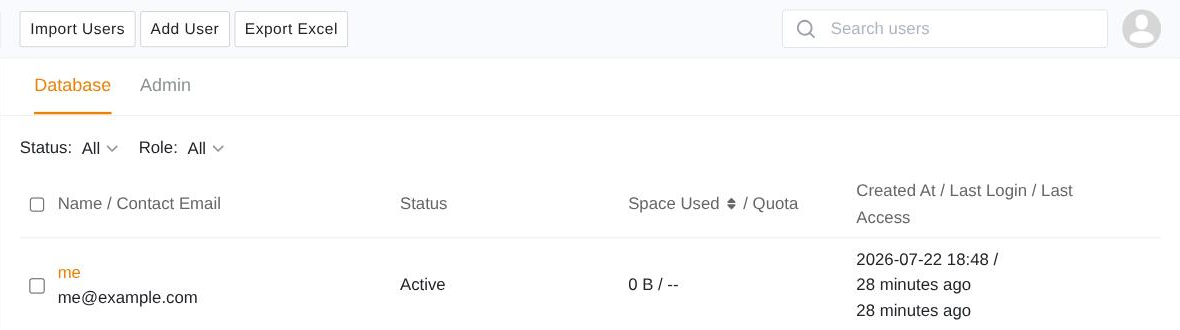
Fixing the credentials without fighting Seafile's "Virtual ID" system
Seafile 12 introduced a privacy feature. Any account created through the normal admin API gets an opaque,
randomly generated login, <random>@auth.local, with your real email stored only as a
separate "contact email". Not the login. Create a fresh account expecting a normal login and you get an
unusable random ID. The account created by the container's own first-boot init script does not go through
that path, and its literal email is the real login. So do not fight the Virtual ID system. Link your real
email as the contact email of the account that already works, and Seafile's login flow resolves it
automatically.
A Cloudflare gotcha that broke exactly one client app
If you sit behind Cloudflare and your iOS app reports "no available cert" or "no available certificates" at login, with fully valid credentials and a properly chained public TLS certificate, check whether your Cloudflare zone has a client certificate for mTLS configured. Even one you do not remember setting up on purpose.
CertificateRequest during the handshake. Most clients handle an
optional request fine and connect without presenting one. Browsers, curl, other iOS apps like
Bitwarden or Immich. Seafile's iOS app does not. It fails outright.
Fix: in Cloudflare, go to SSL/TLS → Client Certificates. Find the certificate covering your domain, edit its Hosts, and remove the hostname. Remove the whole wildcard if nothing else needs it. Verify with a raw TLS handshake check rather than retrying the app:
echo | openssl s_client -connect files.example.com:443 -servername files.example.com 2>&1 \
  | grep -i "client certificate"
# should show: No client certificate CA names sent
The honest truth about "automatic" sync on iPhone
If you want OneDrive-style invisible, continuous background sync on an iPhone, the answer is short. No third-party app achieves that. It is not a Seafile limitation. Apple does not grant third-party apps the background execution privileges continuous bidirectional file sync needs, the way a desktop OS does. That applies equally to OneDrive, Dropbox and Google Drive's own iOS apps. What makes those feel automatic is Apple's own File Provider framework, a first-party integration point with elevated, system-coordinated background privileges a regular background task never gets.
Seafile's iOS app does implement a File Provider extension, so the iOS Files app can browse your Seafile libraries directly. It comes with a real limitation. Non-encrypted libraries show up read-only in the Files app. Fine for opening existing files from other apps. Not a substitute for drag-and-drop uploads.
Practical takeaway. Use the desktop client on Mac, Linux and Windows for real always-on sync, where no iOS restrictions apply. Treat the iPhone app as something you open when you need it, not something running invisibly in the background. That is the ceiling, not a configuration you are missing.