Build an Offsite Proxmox Backup Server Replica on a Cheap VPS
A backup server in the same building as everything it protects is not a disaster recovery plan. A second, independent backup instance on a cheap cloud VPS closes that gap for a few dollars a month. Done right, it does not need to trust the network it is protecting against.
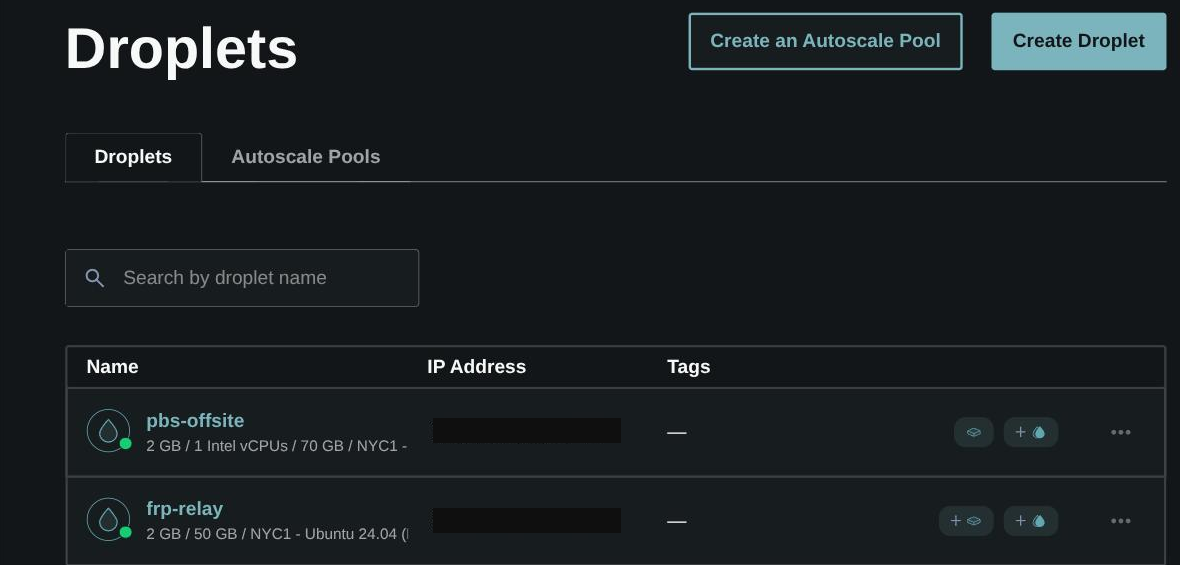
Picking the VPS
You do not need much. If you replicate only VM and container backups, not bulk media or file shares, a small
instance is plenty. One vCPU, a couple of GB of RAM, a modest boot disk. The backup data lives on a separate
attached block-storage volume sized to your real dataset. Size that volume from du -sh on your
actual backup datastore path, not df on the mount. The two numbers differ by an order of
magnitude on a shared NAS export.
The instinct to "tunnel everything", and why it is the wrong tool here
If you already run a reverse tunnel to expose a NAT'd home service to the internet, it is tempting to reach for the same tool to "hide" the new backup server. Pause on that. A generic TCP tunnel changes which address traffic arrives at. It adds no access control of its own. It solves a NAT problem, not a security problem. A cloud VPS does not have a NAT problem. It already has its own public IP. Layering a tunnel on top adds complexity without adding the restriction you want.
What restricts access is a firewall rule scoped to a specific source IP. Most cloud providers offer this as a free built-in cloud firewall or security group, enforced at the network edge before traffic reaches the instance:
- Inbound SSH restricted to your home's public IP only.
- Inbound access to the backup server's own API/web port, same restriction.
- Everything else inbound: denied by default.
Verify it right after you create it. Confirm you can still reach both ports from the allowed address, and ideally confirm from a second network that you cannot.
Does this backup replica need TLS?
Yes. Get a real, trusted certificate instead of clicking through a browser warning every time. If you do not have one going already, see running your own internal certificate authority. Here is the interesting wrinkle. A cloud VPS normally needs a certificate from a public CA like Let's Encrypt, because public CAs validate a domain by reaching it over the internet. But once you firewall this server down to your own home IP, it is functionally an internal-only service despite having a real public IP and DNS record. So it can use your existing internal CA the same way every other admin tool on your LAN does. No public-CA validation dance.
A DNS quirk worth checking while you are in there
Not specific to this setup. If the domain hosting this replica sits on a zone proxied through a CDN for your other public sites, set this record to DNS-only, not proxied. Backup server protocols and ports are not things a CDN's free-tier proxy passes through cleanly.
Locking down the sync credential
Scope the token your home backup server uses to push data offsite to the absolute minimum. Write new backups, nothing else. No delete, no prune, no modify rights. Then even if that credential leaks, or your home server is compromised, whatever gets hold of it cannot reach back and destroy backups that already landed offsite.

Configure a one-way, push-only sync, and disable "remove vanished"
Point your home backup server at the new offsite instance and set up a push sync job, home to offsite, not a pull. Then find the option usually called "remove vanished" or "delete extraneous" and make sure it is off. That setting mirrors deletions. If a backup disappears from the source, the next sync deletes it from the destination. That is exactly the behaviour you do not want on a disaster-recovery copy. A ransomware event, a fat-fingered delete or a bug on the home side should never cascade into wiping the offsite copies.
The honest answer about "immutable" backups
The two mitigations above cover a real and specific threat model. A compromised home network or a leaked sync credential cannot reach back and destroy the offsite copies. Here is what they do not cover. Someone with direct root access on the offsite instance deliberately deleting files. If that level of protection matters to you, swap the backend storage for something with real object-lock support. That is a bigger architectural decision than anything here.
Test it before you trust it
Trigger the sync job by hand once and watch it transfer real data. A green checkmark on the job configuration means nothing. Check the destination instance directly too. Its disk usage growing and a snapshot list populating is the only real confirmation data arrived, rather than just left the source.